Pinterest Pin Design: How to Make Product Pins That Get Clicked
The pin design rules that turn impressions into clicks: exact dimensions, text overlays that work on mobile, colors, and formats that fit product pins.
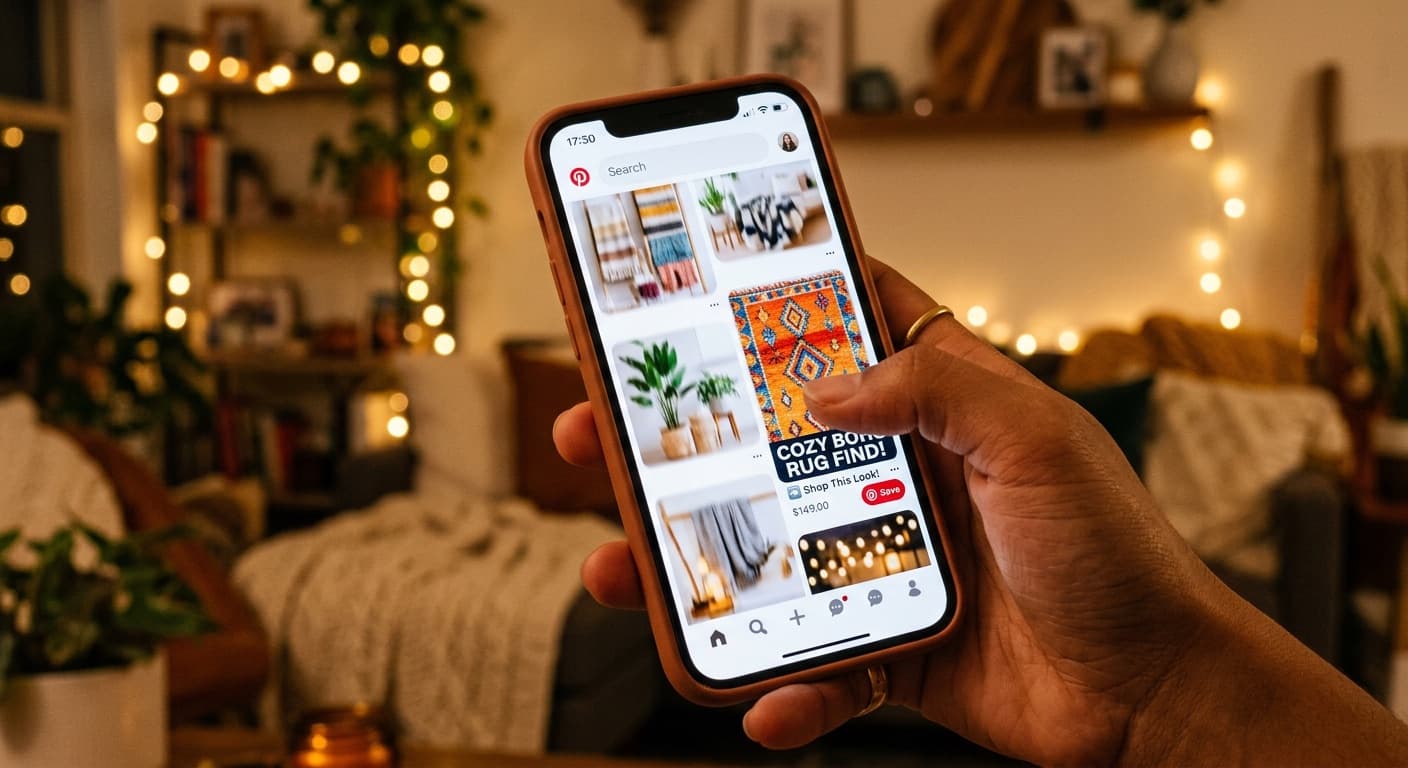
Pinterest Pin Design: How to Make Product Pins That Get Clicked
You have about 1.5 seconds. That is roughly how long your pin appears on someone's screen as they scroll through Pinterest on their phone. In that sliver of time, your pin needs to do something remarkable: make a stranger stop their thumb.
This is not about being the best designer. It is about understanding what makes the human eye pause. The principles are learnable, the formats are repeatable, and the difference between a pin that gets ignored and one that drives traffic is almost always a few specific, fixable things.
What Makes a Pin Stop the Scroll
Before we talk about tools and templates, let us understand the psychology. Three elements consistently make people pause:
Contrast. The Pinterest feed is a wall of images. Pins that stand out from their neighbors get noticed. If the feed is mostly muted tones, a bold red pin pops. If everything around your pin has text overlay, a clean product-only image might be the one that stands out. You cannot control what surrounds your pin, but you can design for maximum contrast against typical feed content in your niche.
Text that adds information. A beautiful product photo might catch someone's eye. But text overlay that adds context, a price point, a benefit, or a surprising claim gives them a reason to stop and actually look. The text should tell the viewer something the image alone cannot communicate. "Handmade in 48 Hours" or "Bestseller - 3,000+ Sold" adds value that a product photo alone does not convey.
Curiosity. Pins that imply there is more to see drive clicks. A collage showing "3 of our 12 new designs" makes you want to see the other nine. A before-and-after where the "after" is partially cropped creates a desire to click through. This does not mean being clickbaity. It means strategically choosing what to show and what to save for the landing page.
Pin Dimensions and Specs
Pinterest has a clear preferred format, and deviating from it costs you real estate in the feed.
The standard: 1000 x 1500 pixels (2:3 ratio). This is the format Pinterest is designed around. It occupies the maximum space in the feed, looks great on mobile, and is what the algorithm expects. Use this for 90% of your pins.
Acceptable alternatives:
- 1000 x 1000 (1:1 square): Takes up less feed space but can work for simple product shots. Use sparingly.
- 1000 x 2100 (longer format): Pinterest used to favor these, but they now get truncated in the feed. Avoid going beyond 2:1 ratio.
- Video pins: 2:3 or 9:16 ratio, 4-15 seconds for product showcases. These autoplay in the feed and can be very effective for showing products in use.
File format: PNG or JPEG, under 20 MB. PNG gives better quality for pins with text overlay. JPEG is fine for photo-only pins.
Resolution: Design at 1000 x 1500 minimum. Higher resolution is fine (2000 x 3000 will be downscaled), but going below 1000px wide will result in blurry pins on high-DPI screens.
Text Overlay Best Practices
Text overlay is the single biggest differentiator between pins that get clicks and pins that get scrolled past. But it has to be done well.
The thumbnail test. Shrink your pin design to the size of a postage stamp. Can you still read the text? If not, your font is too small, too thin, or there is too much text. Most Pinterest browsing happens on phone screens where your pin is roughly 2 inches wide. Design for that size.
Maximum 6-8 words. This is not a blog post. Your text overlay should be a headline, not a paragraph. "Custom Pet Portrait From Your Photo" is six words and tells the viewer exactly what they are looking at. "We create beautiful custom pet portraits painted from your favorite photos in our studio" is too much.
Font hierarchy matters. If you use more than one line of text, create visual hierarchy. The main message should be larger and bolder. Supporting text (like a price or shop name) should be smaller. Two lines of text at the same size and weight create visual confusion.
Contrast your text against the background. White text on a light photo is unreadable. Solutions:
- Add a semi-transparent overlay behind the text (a dark bar or full-image tint)
- Use a text shadow or outline effect
- Place text on a solid-colored bar or banner
- Position text over a naturally dark or simple area of the photo
Fonts that work at small sizes: Sans-serif fonts (Montserrat, Raleway, Open Sans) are generally more readable at small sizes than decorative scripts. If you use a script font, reserve it for one or two words maximum, and pair it with a clean sans-serif for the rest.
Color Psychology for Product Pins
Color choices affect both attention and perception. A few principles to keep in mind:
Warm colors (red, orange, yellow) attract attention and perform well for food, home decor, and gift products. Red in particular has been shown in multiple studies to increase engagement rates on Pinterest.
Cool tones (blue, green, teal) convey trust and calm. These work well for wellness products, stationery, and items marketed around relaxation or nature.
High saturation stands out in the feed. Muted, desaturated photos are trendy on Instagram, but on Pinterest they fade into the background. Slightly boosting the saturation and contrast of your product photos can meaningfully increase their visibility in the feed.
Consistent brand colors build recognition. If every one of your pins uses the same accent color for text overlays and banners, people start recognizing your pins before they even read your shop name. Pick 2-3 brand colors and use them consistently.
White space is not wasted space. A clean background with ample white space can make your product the obvious focal point. This is particularly effective for jewelry, small handmade items, and digital products where the product itself is detailed and deserves full attention.
Photography Tips for Product Pins
You do not need a professional studio. You need good light and intentional composition.
Natural light is non-negotiable. Shoot near a large window during daylight hours. Overcast days provide the best diffused light. Avoid direct sunlight which creates harsh shadows, and never use your phone's flash.
Show the product in context. A flat lay of a candle on a white background tells the viewer what the product looks like. A photo of that candle on a nightstand next to a book and a cup of tea tells them how it will feel in their life. Both types of photos have value, but lifestyle shots consistently outperform isolated product shots for Pinterest engagement.
Shoot vertical. Since your pin needs to be 2:3, shoot photos in portrait orientation or leave room to crop. A horizontal product photo forced into a vertical pin leaves you with awkward empty space above and below.
Multiple angles and arrangements. Each photo is a potential pin. Shoot your product from five different angles, in three different settings, and with two different props arrangements. That gives you up to 30 unique images to work with for pin creation.
Show scale. One of the most common customer questions is "how big is it?" Including a hand, a common object, or a model wearing the item answers this question visually and builds buying confidence.
5 Pin Formats That Work for Products
Not every pin should look the same. Rotating through different formats keeps your content fresh and helps you reach people at different stages of the buying journey.
1. The Lifestyle Shot
A single stunning photo of your product in use or in a styled setting. Minimal or no text overlay, letting the image do the work. Best for visually striking products where the aesthetic sells itself. A hand-thrown ceramic bowl filled with a salad on a rustic wooden table tells a story that no amount of text can match.
2. The Flat Lay Collection
Multiple products or variations arranged in an overhead flat lay. This format works beautifully for products that come in multiple colors, patterns, or styles. "Available in 12 colors" as a text overlay on a flat lay of all 12 options is extremely clickable because the viewer wants to see each option more closely.
3. The How-To or Tutorial
A multi-image pin showing a process or different ways to use your product. "3 Ways to Style This Scarf" with three small photos stacked vertically. This format adds value beyond just showing the product and positions you as helpful rather than salesy. It also naturally creates curiosity since the viewer wants to see the full tutorial.
4. The Testimonial Pin
A product photo with a real customer quote overlaid. "I get compliments every time I wear this - Sarah K." Social proof is incredibly persuasive, and this format leverages it directly in the pin. Use short quotes (under 15 words) that focus on a specific benefit or emotion.
5. The Price or Value Callout
A clean product photo with a prominent price point or value proposition. "Handmade Leather Wallet - $45" or "Free Personalization on Every Order." This format works because it pre-qualifies the viewer. People who click through after seeing the price are much more likely to buy. This format is particularly effective during holiday shopping seasons when people are comparing options.
Designing Pins Without Design Skills
You do not need to be a graphic designer. Here is a realistic workflow for creating quality pins:
Start with a good photo. No design template can rescue a bad photo. Spend your energy getting the photography right first.
Use a consistent template. Create 2-3 pin templates that match your brand (consistent fonts, colors, layout). Then swap in different product photos each time. This is far more efficient than designing every pin from scratch and it builds brand recognition.
Keep it simple. The most effective product pins are usually the simplest. One product photo, one line of text, your shop logo small in the corner. Resist the urge to fill every pixel with information.
Create multiple versions. For every product, create at least 3 pin variations: one lifestyle shot with minimal text, one with a bold text overlay highlighting a feature, and one focused on a specific use case or audience. This gives you more content to schedule and more chances to appear in search for different queries. Good Pinterest SEO means each variation should target slightly different keywords.
AI image tools are worth exploring. The landscape for creating pin visuals is changing rapidly. AI tools can now help extend product images to 2:3 ratio, generate lifestyle backgrounds, and create variations of your existing product photography. This technology is still maturing, but it is increasingly practical for Etsy sellers who need volume without hiring a photographer for every shoot.
The Pin Creation Workflow
A practical weekly workflow for a busy Etsy seller:
- Batch your photography. Once a month, spend 2-3 hours shooting all your products and new listings. Aim for 5-10 photos per product.
- Batch your design. Once a week, spend an hour creating pins from your photo library. Use templates to speed this up. Aim for 15-25 new pins per week.
- Write your titles and descriptions. For each pin, write a keyword-optimized title and description. This is where many sellers rush, but it is as important as the design itself.
- Schedule everything. Load your pins into a scheduler and spread them across the week at 3-5 pins per day. PetalBoard is designed for exactly this workflow, letting Etsy sellers go from product photos to scheduled pins in a single session.
The sellers who see real results from Pinterest are not the ones with the fanciest designs. They are the ones who consistently create decent pins with good keywords, week after week. Volume and consistency beat perfection every time.
Create Better Pins, Faster
PetalBoard helps Etsy sellers design, caption, and schedule Pinterest pins without the busywork. AI-powered captions in your brand voice, smart scheduling, and a visual planner that makes batch creation painless. Start free at petalboard.com and turn your product photos into a steady stream of Pinterest traffic.